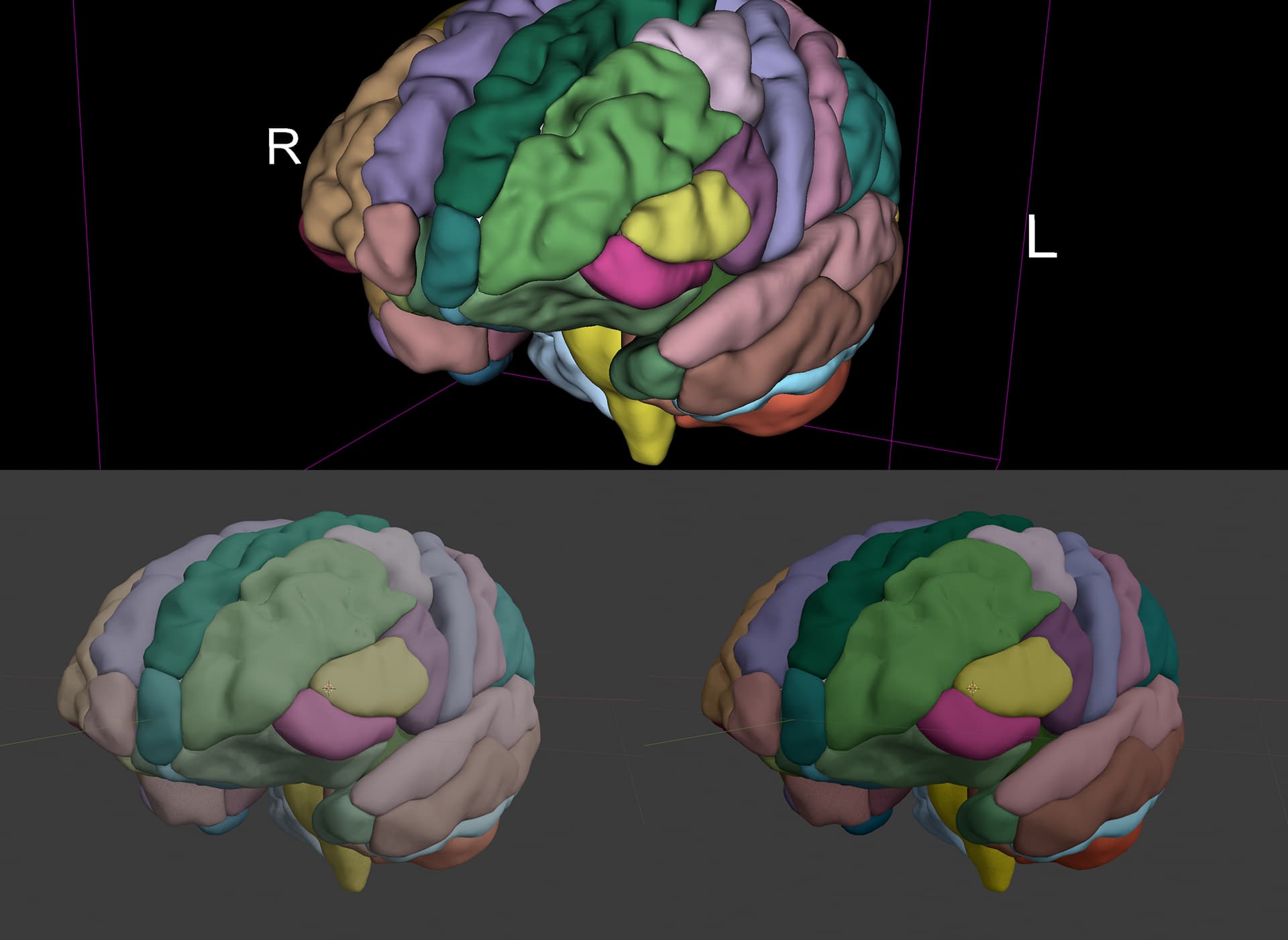
@lassoan Thanks for the reply. In my experience, if the OBJ export writes the mtl with diffuse color the same as segment’s color (as the Open Anatomy module does), this allows the same color to be imported into the external 3D software correctly.
One observation that is likely related to reports of colors looking ‘washed-out’ in Blender is that the color Slicer uses from the color-picker is in sRGB color space, but Blender interprets the color as being linear.
OBJ is an older format and predates the use of linear color space rendering, so sRGB colors in mtl is the norm. Autodesk 3D softwares allows for color management that can automatically map colors & textures from sRGB to linear.
Blender will map sRGB textures to linear, but doesn’t do the same for colors in mtl files during OBJ import. A user can get around this by approximating sRGB to linear conversion by applying a gamma value of 2.2.
import bpy
for mat in bpy.data.materials:
    if not mat.use_nodes: continue
    for node in mat.node_tree.nodes:
        if node.type == 'BSDF_PRINCIPLED':
            color_input = node.inputs.get("Base Color")
            if color_input and not color_input.is_linked:
                c = color_input.default_value
                color_input.default_value = (pow(c[0], 2.2), pow(c[1], 2.2), pow(c[2], 2.2), c[3])
                mat.update_tag()
            break
A robust OBJ export solution might include options for linear or sRGB color output.
Here is a segmentation in Slicer (top), and initial import in Blender (left) where the colors are incorrectly interpreted as linear. On the bottom right is Blender after running the above script with the gamma shift.